


دليل استكشاف أخطاء جودة الطباعة وإصلاحها

تشتت الخلفية
| عينة | Problem | Possible Cause | Solution |
 |
background scatter | Fuser assembly is bad | Do a half-way test to determine if it is the fuser |
| background scatter | Transfer Roller is dirty or worn. A worn Transfer Roller can cause background scatter due to improper bias voltages. | Replace the transfer roller. | |
| background scatter | Toner cartridge is defective | Install a new toner cartridge |
خطوط سوداء (متوازية أو متعامدة)
| عينة | Problem | Possible Cause | Solution |
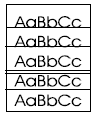 |
black lines – parallel or perpendicular | If the lines are repeated at a consistent interval down the page, this is a repetitive defect. | See the Repetitive Image Defect Ruler in the service manual to measure and determine source of lines. |
صفحة سوداء
| عينة | Problem | Possible Cause | Solution |
 |
black page | Defective toner cartridge | Install a new toner cartridge |
| black page | High voltage power supply circuit is defective (not supplying the correct negative voltage) | Replace the High Voltage Power Supply PCA | |
| black page | DC controller PCA is defective. If the DC Controller turns on the laser beam continuously, the entire surface of the Photosensitive drum is neutralized causing a completely black page. | Replace the DC Controller PCA |
صفحات سوداء ، كل الصفحات
| عينة | Problem | Possible Cause | Solution |
 |
blank page – all pages | No toner is available for print | Remove sealing tape on toner cartridge, or replace the toner cartridge if necessary. |
| blank page – all pages | Malfunctioning laser shutter | Perform a half-way test and see if there is an image on the imaging drum. If there is no image on the drum, check the laser shutter for correct operation when inserting the toner cartridge. | |
| blank page – all pages | No transfer roller voltage | Perform a half-way test and see if there is an image on the imaging drum. If there is an image on the drum, make sure the transfer roller is installed. Without transfer roller voltage, toner cannot be attracted from the surface of the drum to the print media. Replace the transfer roller if necessary. | |
| blank page – all pages | No developing bias | Perform a half-way test and see if there is an image on the imaging drum. If there is no image on the drum, clean the high-voltage power supply contacts. With no developing bias charge, toner is not attracted to the drum. Replace the engine controller board if necessary. | |
| blank page – all pages | Defective laser scanner cable | Perform a half-way test and see if there is an image on the imaging drum. If there is no image on the drum, low-level signals exchanged between the laser/scanner assembly and the engine controller board could theoretically affect laser output. Replace the laser/scanner cable assembly if necessary. |
صفحات سوداء ، من حين لآخر
| عينة | Problem | Possible Cause | Solution |
|
blank page – occasional | Multiple feeds | The printer may be feeding two or more pages at once because the paper is difficult to separate. Flex the paper a bit to help separate before installing in printer. |
| blank page – occasional | Software configuration , network configuration | Re-install printer driver. Check paper size settings in software. Check any software/network settings related to printing a blank separator page between jobs. | |
| blank page – occasional | Malfunctioning paper pickup assembly | The paper pickup solenoids can misfire and intermittently cause the pickup rollers to rotate an extra revolution. This will cause a blank page. Replace or repair paper pickup solenoids. |
نقاط فارغة
| عينة | Problem | Possible Cause | Solution |
 |
blank spots | Defective toner cartridge | Replace the toner cartridge. |
| blank spots | Dirty laser scanner mirrors | Clean the laser scanner mirrors. On some models, this is an advanced procedure; consult the service manual for instructions on accessing the laser scanner assembly. | |
| blank spots | Contaminated or deformed transfer roller | Replace the transfer roller. |
طباعة الفقاعة
| عينة | Problem | Possible Cause | Solution |
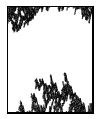 |
bubble print | Defective High Voltage Power Supply | Replace the High Voltage Power Supply |
| bubble print | Photosensitive drum inside toner cartridge is not grounded | Check for proper mounting of the High Voltage Power Supply, and the HVPS ground contact on the toner cartridge. Check for proper seating of toner cartridge. Replace toner cartridge. | |
| bubble print | Paper does not meet specifications — moisture content, conductivity, or surface finish may not work correctly with the electrophotographic process. | Try a different paper type | |
| bubble print | Defective toner cartridge | Replace the toner cartridge. |
طباعة مضغوطة
| عينة | Problem | Possible Cause | Solution |
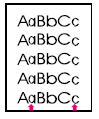 |
compressed print | Drive gear is broken or worn | Inspect and replace the worn gear of assembly |
| compressed print | Toner cartridge bushings are too tight | Replace the toner cartridge |
تلوث على الظهر
| عينة | Problem | Possible Cause | Solution |
 |
contamination on back | Contamination inside printer | 1. Print at least 10 pages to see if the problem goes away on its own.
2. Print a cleaning page (consult User’s Guide/ Service Manual.) 3. Identify and clean the contaminated part, or better yet, replace the contaminated part if replacements are orderable. 4. If contamination continues, check toner cartridge for leaks. Replace cartridge. |
| compressed print | Print media does not meet printer specifications, or is stored improperly. | 1. Print a few more pages to see if the problem corrects itself.
2. Turn over the stack of media in the tray. Also try rotating the media 180 degrees. 3. If the print media does not meet HP specifications, replace the paper, and advise the customer to use the recommended print media and store it properly. |
التجاعيد
| عينة | Problem | Possible Cause | Solution |
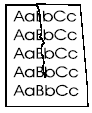 |
creases | Paper is loaded incorrectly. | Make sure print media is loaded into tray correctly, and that the tray guides are adjusted properly to fit against the paper stack. |
| creases | Determine the cause by performing a half-way test to isolate the defective component. | Replace defective component. Common possibilities include slipping paper pickup assembly, slipping feed assembly, slipping fuser assembly. |
لفة
| عينة | Problem | Possible Cause | Solution |
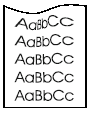 |
curl | Print media does not meet printer specifications or is stored improperly. | 1. Print a few more pages to see if the problem corrects itself.
2. Turn over the stack of media in the tray. Also try rotating the media 180 degrees. 3. I the print media does not meet HP specs, replace the paper. |
| curl | Wrong fuser setting for print media type | From the paper-handling menu on the control panel, change the fuser mode setting or choose another paper type from the printer driver. | |
| curl | Wrong output bin | Print to a different output bin (top or rear output bin). |
صورة مشوهة
| عينة | Problem | Possible Cause | Solution |
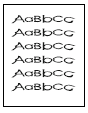 |
distorted image | Defective engine controller board | Replace the engine controller board |
| distorted image | Defective laser scanner | Replace the laser scanner | |
| distorted image | Poor connection of cables to the engine controller board | Reseat the cables connected to the engine controller board | |
| distorted image | Print media does not meet printer specifications or is stored improperly | 1. Print a few more pages to see if the problem corrects itself.
2. Turn over the stack of media in the tray. Also try rotating the media 180°. 3. If the print media does not meet HP specifications, replace the paper, and advise the customer to use the recommended print media and store it properly |
عيوب طباعة طابعة الليزر – المتسربون
| عينة | Problem | Possible Cause | Solution |
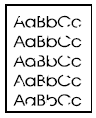 |
dropouts | Failing toner cartridge, or wrong toner density setting | Replace toner cartridge, or wrong toner density setting |
| dropouts | Failing upper fuser roller in fuser | Replace fuser | |
| dropouts | DC Controller is defective (low primary voltage) | Replace the DC controller | |
| dropouts | High Voltage Power Supply is defective | Replace the high voltage power supply | |
| dropouts | Transfer roller is defective | Replace the Transfer Roller |
طباعة باهتة مع الفقاعات
| عينة | Problem | Possible Cause | Solution |
 |
fading print with bubbles | Toner cartridge drum not grounded properly | With no ground path, the drum cannot discharge. The negative charge on the drum repels toner and leaves a white page with bubble print.
1. Replace toner cartridge. 2. Check the drum ground spring and reconnect it, if necessary. 3. Replace the engine controller board |
طباعة باهتة
| عينة | Problem | Possible Cause | Solution |
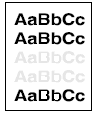 |
fading print | Toner supply is low , failing | Shake the cartridge gently to redistribute the toner, or replace the cartridge |
| fading print | Transfer roller is defective or incorrectly installed. If the Transfer roller loses conductivity, it cannot effectively pull toner from the drum to the paper | Inspect the Transfer Roller for proper installation and contact. If the Transfer Roller is damaged, replace it | |
| fading print | Laser mirror is dirty or shutter is not functioning | Clean the scanner mirror. Check the Laser/Scanner shutter door for proper operation. If defective, replace the Laser/Scanner Assembly. | |
| fading print | Print density is set incorrectly | Change to a darker setting and retry printing | |
| fading print | EconoMode is on. (EconoMode saves toner by reducing the dot density. This may appear to be a print quality problem in some cases.) | Turn EconoMode off. EconoMode settings are stored in either the printer driver or the job application. |
التسجيل الخاطئ
| عينة | Problem | Possible Cause | Solution |
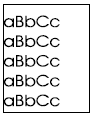 |
Faulty registration | Paper guide on the paper tray is incorrectly adjusted. | If the guide is pushing too tightly against the paper, it may be delayed in being pulled into the printer. If the guide is too loose, it may cause image skewing. Make sure that the paper guide is adjusted for the correct paper size and is locked into position. |
| Faulty registration | Paper is being picked up skewed; worn pickup , feed, or registration rollers. | Inspect all paper path rollers, looking for wear, cracks, or glazing. Replace worn rollers. | |
| Faulty registration | Paper tray is overloaded. If the tray is overloaded, the Pickup Rollers may not pick correctly. | Reload proper amount of paper squarely in the tray. Review paper loading with the customer. |
خلفية رمادية
| عينة | Problem | Possible Cause | Solution |
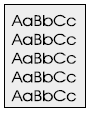 |
Gray background | Faulty toner cartridge | Replace the toner cartridge |
| Gray background | High voltage power supply failure | Replace high voltage power supply | |
| Gray background | Formatter failure | Replace formatter | |
| Gray background | Wrong toner density setting | From the print-quality menu on the control panel, adjust the toner density setting. |
خطوط أفقية سوداء
| عينة | Problem | Possible Cause | Solution |
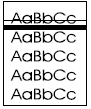 |
Horizontal black lines | Defective laser scanner assembly or engine controller board | 1. See the “Repetitive defect ruler”
2. Reseat connectors on the laser scanner and engine controller board. 3. Replace the laser/scanner assembly followed by the engine controller board, if necessary |
لطخات أفقية
| عينة | Problem | Possible Cause | Solution |
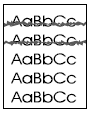 |
Horizontal smudges | Paper path contamination or damage | 1. See the Repetitive defect ruler.
2. Check the toner cartridge and replace it if necessary. 3. Check the fuser and replace it, if necessary |
عيوب طباعة طابعة الليزر – خطوط بيضاء أفقية
| عينة | Problem | Possible Cause | Solution |
 |
Horizontal white lines | Defective toner cartridge | Replace the toner cartridge |
| Horizontal white lines | Dirty / defective laser scanner assembly | Clean laser scanner mirrors. Replace scanner assembly if necessary. | |
| Horizontal white lines | Defective DC controller | Replace DC controller |
انحراف الصورة
| عينة | Problem | Possible Cause | Solution |
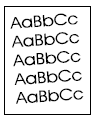 |
Image skew | Pickup roller are worn. Paper is being fed at a skewed angle. | Inspect all paper path rollers, looking for wear, cracks or glazing. Replace worn rollers. |
| Image skew | Paper size adjustment levers are not in correct position | Verify position of paper size adjustment levers, and correct | |
| Image skew | Paper is loaded incorrectly. If paper is not installed flush and tight in the paper tray, a skewing problem will result. | Remove paper from the tray, and install paper correctly. Position the paper guide correctly for the paper size being used. | |
| Image skew | Failing registration assembly | Replace registration assembly |
طباعة فاتحة أو طباعة داكنة أو تتلاشى
| عينة | Problem | Possible Cause | Solution |
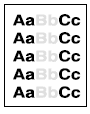 |
Light print, dark print, or fade | Toner cartridge is low or failing | Replace the toner cartridge |
| Light print, dark print, or fade | Toner cartridge is low or failing | Reinstall transfer roller, making sure it is fully seated. Replace transfer roller if necessary. | |
| Light print, dark print, or fade | Dirty laser scanner, or defective laser scanner | Clean laser scanner mirrors. Replace laser scanner if necessary. | |
| Light print, dark print, or fade | Poor contact from toner cartridge to engine controller board, or failing engine controller board, or failing high voltage power supply | 1. Ensure that the drum ground spring is connected to the engine controller board correctly.
2. Clean the contacts if they are contaminated. If the problem remains after cleaning, or parts are damaged or deformed, replace them. 3. Replace the engine controller board. 4. Replace the high voltage power supply. |
|
| Light print, dark print, or fade | Wrong toner density setting, or EconoMode setting | From the Print Quality menu, adjust the toner density setting. Make sure EconoMode is off. |
مسحوق حبر سائب
| عينة | Problem | Possible Cause | Solution |
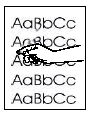 |
Loose toner | Defective , failing fuser | Replace the fuser |
| Loose toner | Toner cartridge is defective | Replace the toner cartridge | |
| Loose toner | Wrong fuser setting for paper type | Paper type settings control the heat of the fuser and bonding of the toner. From the paper-handling menu on the control panel, change the fuser mode setting or choose a different paper type from the printer driver | |
| Loose toner | Toner spill contamination inside the printer | Print a few more pages to see if the problem corrects itself. Clean the inside of the printer or use the printer’s cleaning page. | |
| Loose toner | Paper type might be unusable (too thick, too smooth, etc). | Try an alternate paper type |
أحرف مشوهة
| عينة | Problem | Possible Cause | Solution |
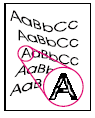 |
Misshapen characters | Defective , failing fuser assembly | Replace the fuser |
| Misshapen characters | Laser scanner assembly is defective | Replace the laser scanner assembly | |
| Misshapen characters | Failing drive gears causing fuser rollers to “slip” when bonding | Listen for excessive drive gear noise; examine drive gears for wear. Replace if necessary. | |
| Misshapen characters | Failing transfer roller | Clean or replace transfer roller | |
| Misshapen characters | Paper surface is too smooth for proper toner adhesion | Try an alternate paper type with different surface | |
| Misshapen characters | Paper surface is too rough; toner migrates to low spots and leaves higher areas void | Try an alternate paper type with different surface |
صفحة فارغة جزئية
| عينة | Problem | Possible Cause | Solution |
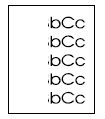 |
Partial blank page | Toner cartridge is failing | Replace the toner cartridge |
| Partial blank page | Unseated transfer roller | Check transfer roller to ensure proper installation | |
| Partial blank page | Dirty laser scanner, or defective laser scanner | Clean laser scanner mirrors. Checker shutters for correct operation. Replace laser scanner if necessary. | |
| Partial blank page | Failing engine controller board, failing high voltage power supply | 1. Ensure that the drum ground spring is connected to the engine controller board correctly.
2. Clean the contacts if they are contaminated. If the problem remains after cleaning, or parts are damaged or deformed, replace them. 3. Replace the engine controller board. 4. Replace the high voltage power supply. |
|
| Partial blank page | Page is too complex or not enough memory | Memory overflow error should occur, or “page too complex” error. Try an alternate print driver. Add printer memory if necessary. |
عيوب متكررة
| عينة | Problem | Possible Cause | Solution |
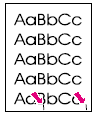 |
Repetitive defects | Defective toner cartridge | Perform a half-way test. Replace the toner cartridge if necessary. |
| Repetitive defects | Defective fuser | Perform a half-way test. Replace the fuser if necessary. | |
| Repetitive defects | There are a variety of causes for repetitive defects. Check the repetitive defects ruler. | See repetitive defect ruler. |
انحراف
| عينة | Problem | Possible Cause | Solution |
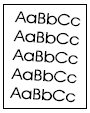 |
Skew | Print media is not loaded correctly, or trays are not adjusted properly. | 1. Make sure paper is loaded straight/neatly/correctly.
2. Make sure paper tray is not filled past capacity. 3. Ensure the paper guides in the tray fit properly against the paper. |
| Skew | Paper pickup / feed rollers are worn and feeding paper at a skewed angle | Check pickup / feed rollers for wear. If possible, print from a different tray / paper path to verify that only rollers in that path are failing. Replace worn rollers. | |
| Skew | Registration assembly is failing | Replace registration assembly if necessary | |
| Skew | Object blocking paper path | Check the paper path for obstruction | |
| Skew | Laser scanner assembly is failing. | Replace laser scanner assembly if necessary |
مسارات الإطارات
| عينة | Problem | Possible Cause | Solution |
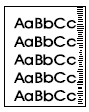 |
Toner smear | Failing toner cartridge | Replace toner cartridge |
| Toner smear | Contamination on paper pickup / feed rollers | Clean or replace rollers. |
مسحة الحبر
| عينة | Problem | Possible Cause | Solution |
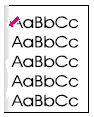 |
Toner smear | Failing toner cartridge | Do halfway test to isolate the problem. Replace toner cartridge |
| Toner smear | Fuser assembly has toner buildup, or is failing. | Do halfway test to isolate the problem. Run some more pages to try to clear the toner buildup. If needed, replace fuser | |
| Toner smear | Toner spill contamination in the printer | 1. Print a few pages to see if the problem corrects itself.
2. Clean the inside of the printer or use the printer’s cleaning page. |
|
| Toner smear | Wrong fuser setting for paper type | From the paper-handling menu on the Control Panel, change the fuser mode setting or choose another paper type from the printer driver. | |
| Toner smear | Defective DC controller. (DC controller regulates fuser temperature). | If a replacement fuser doesn’t solve the problem, replace DC controller PCA. | |
| Toner smear | Paper type may be unusable (too smooth, too thick, too rough) | Try a different paper type |
بقع الحبر
| عينة | Problem | Possible Cause | Solution |
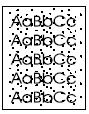 |
Toner specks | Failing toner cartridge | Replace toner cartridge |
| Toner specks | Failing toner cartridge | 1. Print a few pages to see if the problem corrects itself.
2. Clean the inside of the printer or use the printer’s cleaning page. |
|
| Toner specks | Failing toner cartridge | Do halfway test to isolate the problem. Run some more pages to try to clear the toner buildup. If needed, replace fuser |
خطوط سوداء عمودية
| عينة | Problem | Possible Cause | Solution |
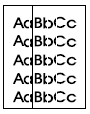 |
Vertical black lines | Defective toner cartridge | Very common — Install another toner cartridge or perform a halfway test to isolate the problem. Replace toner cartridge if necessary. |
| Vertical black lines | Worn , failing fuser film | Somewhat common — Perform a halfway test to isolate the problem. Check fuser film for tearing or wear. Replace the fuser if necessary. | |
| Vertical black lines | Defective formatter generating a “video line” | Less common — Replace formatter if necessary | |
| Vertical black lines | Faulty DC controller or high voltage power supply | Less common — Replace DC controller , high voltage if necessary |
النقاط العمودية
| عينة | Problem | Possible Cause | Solution |
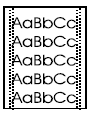 |
Vertical dots | Defective toner cartridge | Replace toner cartridge |
| Vertical dots | Defective engine controller board | Replace engine controller board | |
| Vertical dots | Deformed or deteriorated transfer roller | Replace the transfer roller | |
| Vertical dots | Faulty DC controller or high voltage power supply | Replace DC controller , high voltage if necessary |
خطوط بيضاء عمودية
| عينة | Problem | Possible Cause | Solution |
 |
Vertical white lines | Failing toner cartridge | Very common — Try gently shaking the cartridge to redistribute the toner. If the problem continues, replace the toner cartridge. |
| Vertical white lines | Contamination in the laser path | Somewhat common —
1. Clean the laser scanner mirrors and lens. 2. Replace the laser / scanner assembly. |
بقع بيضاء على الأسود
| عينة | Problem | Possible Cause | Solution |
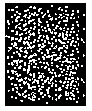 |
Vertical white dots | Defective toner cartridge | Replace the toner cartridge |
| Vertical white dots | Defective high voltage power supply (HVPS) or fuser. | 1. Print a few more pages to see if the problem corrects itself.
2. Make sure that print media type and quality meet HP specifications. 3. Make sure that the environmental specifications for the printer are being met. 4. Replace the toner cartridge, HVPS, or fuser. |
خطوط بيضاء موازية للمسار
| عينة | Problem | Possible Cause | Solution |
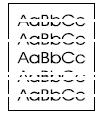 |
White stripes parallel to path | Failing toner cartridge | Replace the toner cartridge |
| White stripes parallel to path | Failing transfer roller | Replace the transfer roller |
